
Updating firmware of your controllers will grant them access to new features like easier and more robust calibration. This article explains how to perform the latest controller firmware update.
Before you start, make sure:
-
You have physical access to the system and its top cover as well as tools to open it and flick the switches
- System has reliable internet connection
Step 1 | Open the console
What you need
- A ladder (not a straight one, it should stand by itself to keep the detection area of the wall unobstructed)
- A TX30 Torx screwdriver (for the console cover)
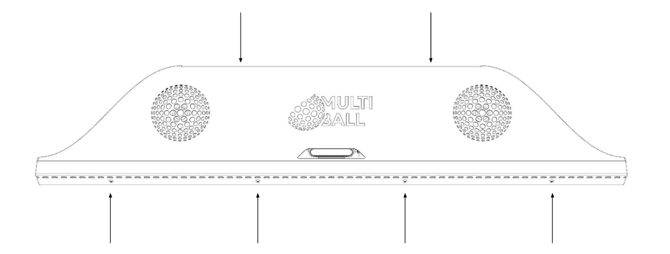
- Remove the six screws (M6, TX30 Torx) of the console.
- Pull at the lower end of the cover to detach it from the rest of the frame. The upper end is secured by a tab. Now, lift the cover upward to remove it.
Step 2 | Update process
- Go to your system's admin page to Settings -> Updates -> Firmware updates
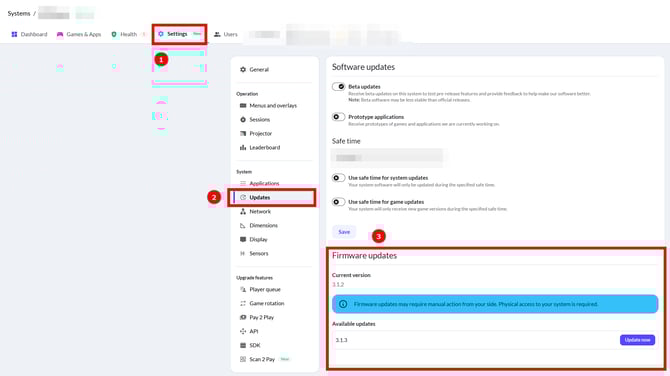
- If you have an available update to install, it will be shown with an "Update now" button. Otherwise, you most likely already have the latest firmware, so you don't need to update it.
If you have one of the earlier models, it is possible that you have a very outdated firmware installed. In this case it's impossible to perform update on your own, so you will be prompted to open a service ticket with us, so we can do it together
- Click "Update now" button, the firmware update process will start. Carefully follow its instructions until process is finalized
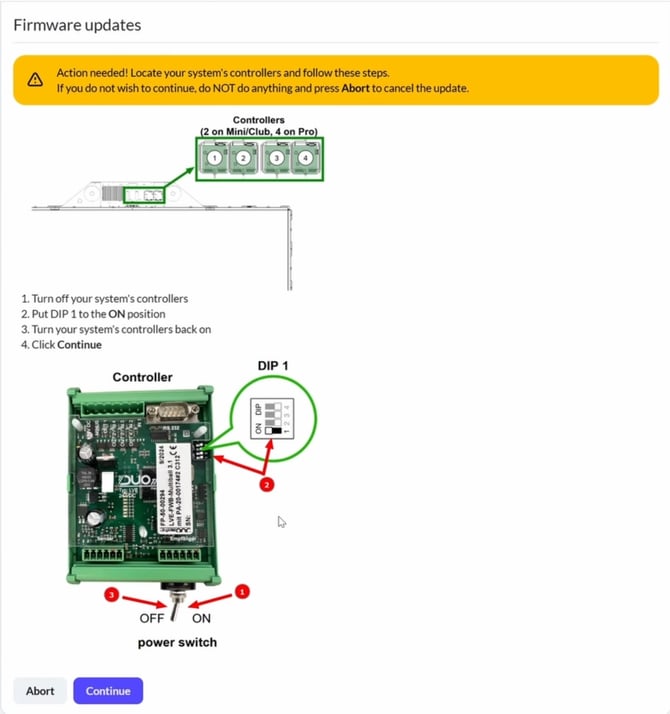
- If you are not ready yet to perform the update, it's better to abort early
- If something goes wrong during the update it will be aborted. Make sure you followed instructions and try again
Important notes:
-
Mini and Club systems only have 2 controllers to update, while Pro has 4
- You update all controllers simultaneously, so ideally you would need to perform the update once
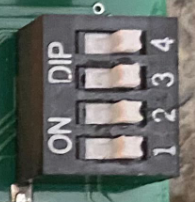
- You will need to switch DIP 1 switch as one of the steps during the update. DIP 1 is the first switch from the bottom. You can see the relevant markings for each switch on the right. "On" is when switch is on the left side.
Step 3 | After update
-
Before closing the top lid, test the ball detection after the update. If balls are not being detected, please check whether all DIP switches are turned off (all to the right)
- Close the top lid
Features of new firmware
- 3.1.3:
- With the new firmware installed, now you will have access to the new section in your system's admin page at Settings -> Sensors -> Sensor calibration. There you have a new "Start calibration" button that performs sensor calibration automatically.
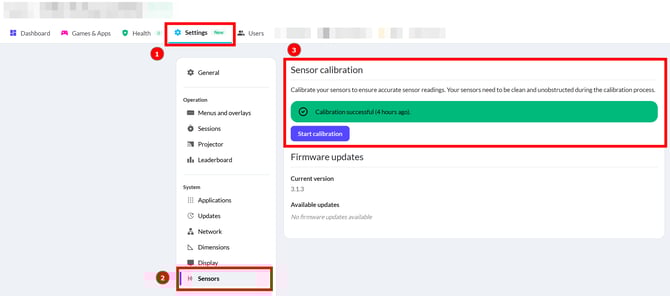
- With the new firmware installed, now you will have access to the new section in your system's admin page at Settings -> Sensors -> Sensor calibration. There you have a new "Start calibration" button that performs sensor calibration automatically.
Warning! This calibration button shouldn't be used too frequently. It has a potentially finite number of allowed calibrations before hardware may start to perform unpredictably. We recommend to use it only in case of sensor blockages (after cleaning them) and in case of drastic changes in the environment where the system is installed (e.g. once every 3-6 months to adapt to temperature and lighting changes)
-
- Additionally, new firmware brings better automatic calibrations that happen in the background, so your system will become more robust to sensor related issues. You can read more