
In order to finish the installation, our Service Team has to reconfigure your system remotely. Therefore, please get in touch with the Service Team before the installation so that we align and avoid any downtime.
Removal of the original computer
- Remove the cover of the system by removing the four TX30 screws on the bottom of the console
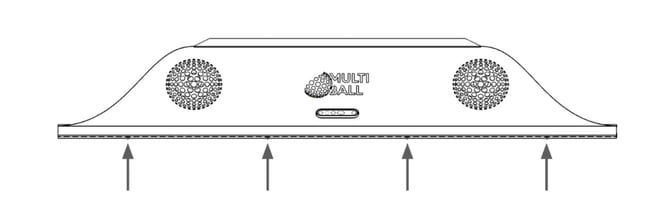
- Tilt the console cover and lift it up to release it from the hinge slot
- Unplug the connector from the power supply
-
Locate the original computer, it is on the left inside the console
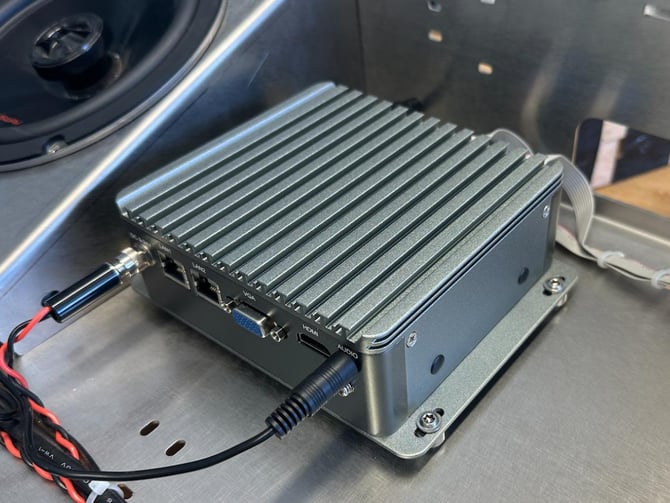
- Unplug all cables on all sides from the computer
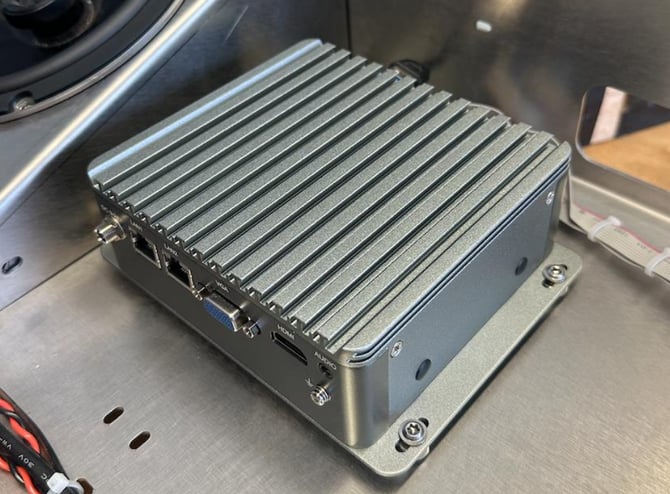
- Remove the Computer from the metal plate by removing the four screws
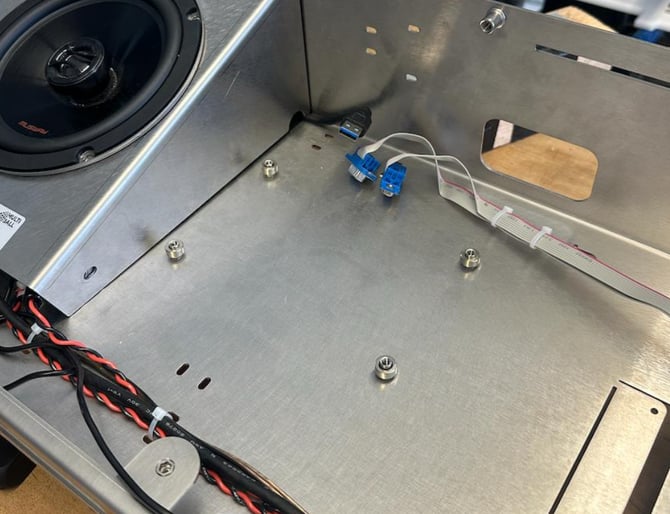
Cable Rearrangement
- Remove the screws of the speaker housing
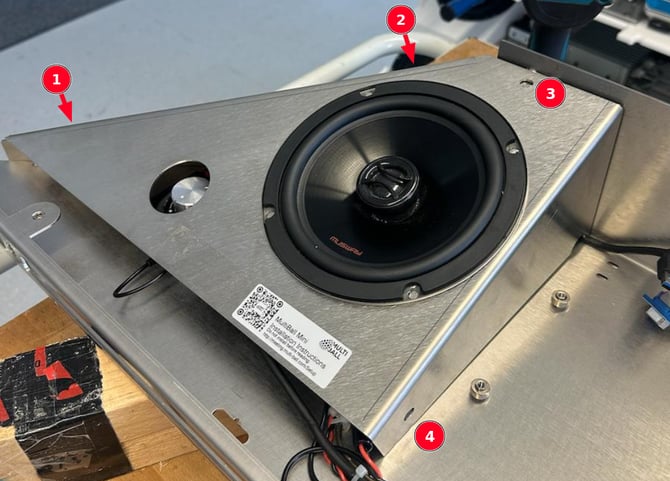
- Remove the speaker housing. Now that you can access all cables, bring all cables to the right.
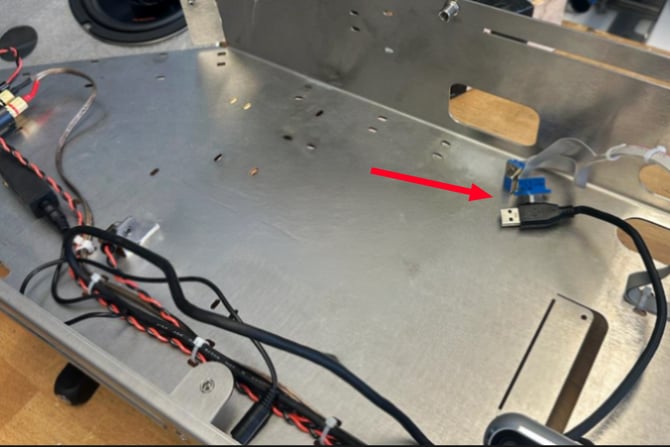
- Reinstall the speaker housing
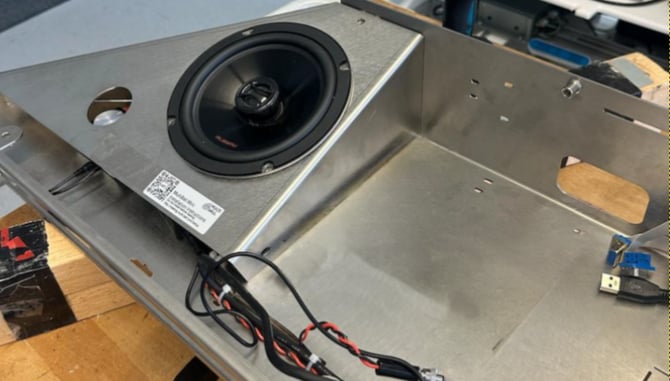
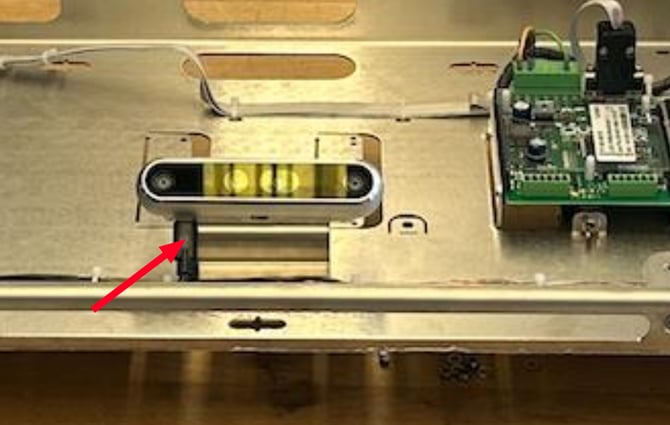
- Remove the original USB cable that is attached to the tracking camera. Remove it not only from the camera, but remove the cable completely.
Adapter Plate and Computer Installation
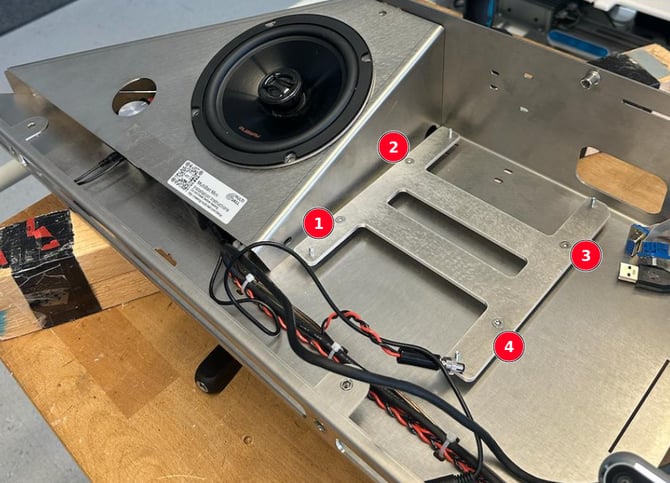
- Install the adapter plate by using the four screws we sent with the adapter plate
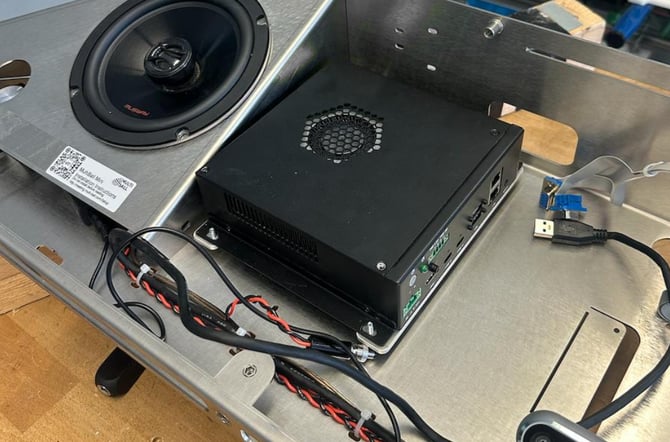
- Put the Cortex Computer on top of the adapter plate
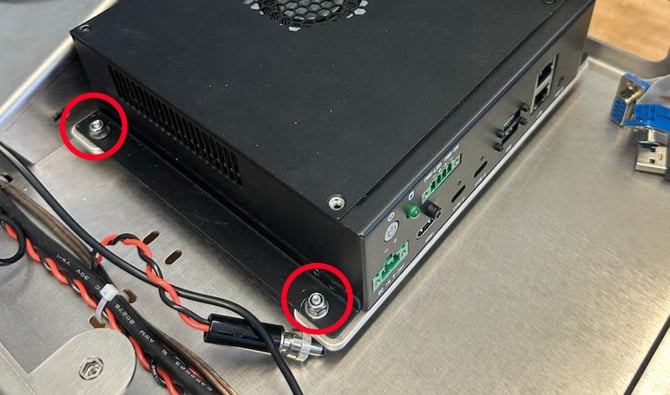
- Secure the computer with the four nuts that came with the adapter plate
Cabling
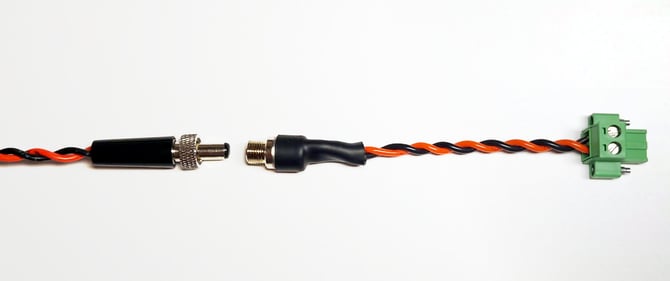
- Install the power cable adapter by screwing it onto the original cable
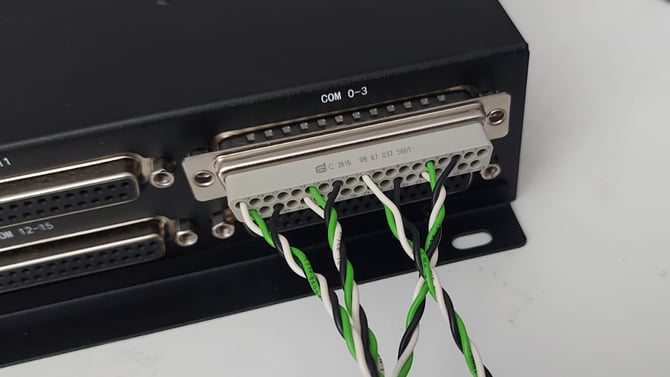
- Plug in the serial adapter into the new computer at position COM 0-3. If possible, secure the connector with screws.
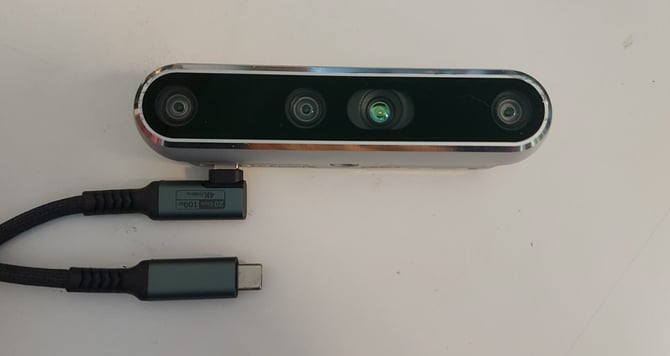
- Plug the new short USB C cable into the realsense camera
- Plug in the power adapter cable (1), the HDMI cable (2), the USB cables for the tracking camera (3) and the amplifier (4), as well as your LAN cable (4).
If your amplifier is not attached via USB but via AUX, then plug back in that cable instead.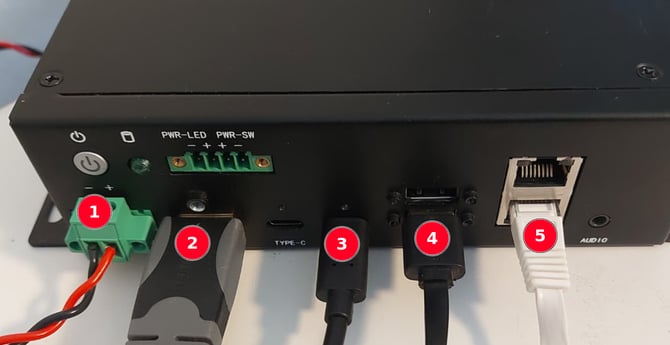
- Connect the serial adapter to the original serial cables in the following order
- PC 1 → 0
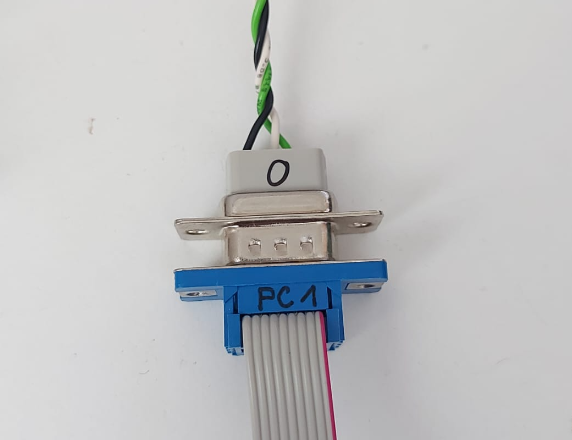
- PC 2 → 1
- PC 3 → 2 (only Pro systems)
- PC 4 → 3 (only Pro systems)
- PC 1 → 0
- Secure the cables with e.g. cable ties
- Plug the DC connector back into power supply
Contact the LYMB.iO Service Team
- Inform our Service Team, so that we can finish the configuration, to do so please create a ticket