
Setup Scan 2 Pay
-
Sign in to the admin and open your system overview.
-
Find your system, then click Settings.
-
Open the Scan 2 Pay category.
- If this is your first time using this feature, you will be asked to create a payout account. Refer to the section Receive Payouts for more information. If you have already set up a payout account in the past, we will use that one.
- Click Setup payment page to create a checkout page for your customers.
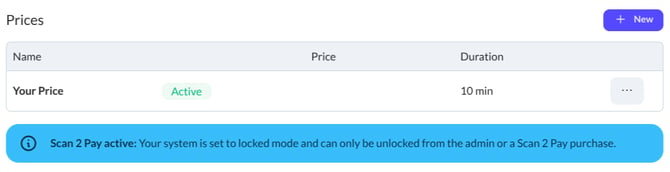
- In the Prices section, click New to add a new price. You can create multiple price options, but only one can be active at a time. A QR code to purchase the active price option will be displayed on your system screensaver. The system will be unlocked for the time you specify after a payment is completed.
Receive Payouts
We partner with Stripe to provide secure payments and offer a powerful dashboard to manage all transactions. You will be asked to create or connect a Stripe account when first setting up Scan 2 Pay on your system. All your payouts will go through this account. You can check the details directly with Stripe using this link.
Disable Scan 2 Pay
While a Scan 2 Pay price is active, your system is automatically put into Locked Mode. This means the system can only be unlocked from the web interface, or by paying the Scan 2 Pay price. To unlock the system again, disable the currently active Scan 2 Pay price.
- Navigate to your system's Scan 2 Pay Settings
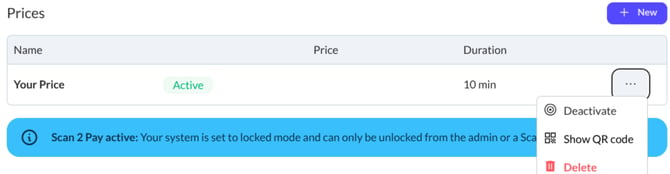
- Find the section Prices and open the context menu of the price marked as Active
- Click on Deactivate to deactivate the price and Scan 2 Pay
Service and Transaction Fees
Each payment is subject to transaction and service fees. A service fee of 8% ensures that we can have the feature working reliably and make improvements in the future. Additionally, Stripe charges a small transaction fee depending on your location and the payment method used.