
Locating Your Menu Settings
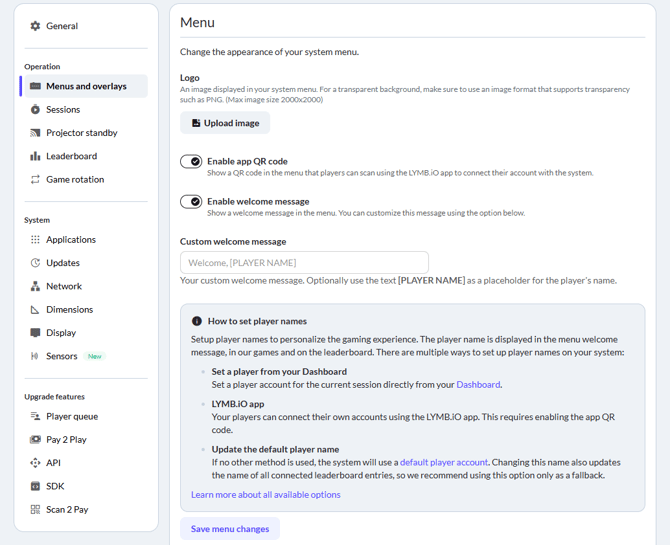
Find all menu options in the Menus and overlays settings under Settings → Menus and overlays. See How to adjust the system settings? for more details on how to find your system settings.
Upload a Menu Image
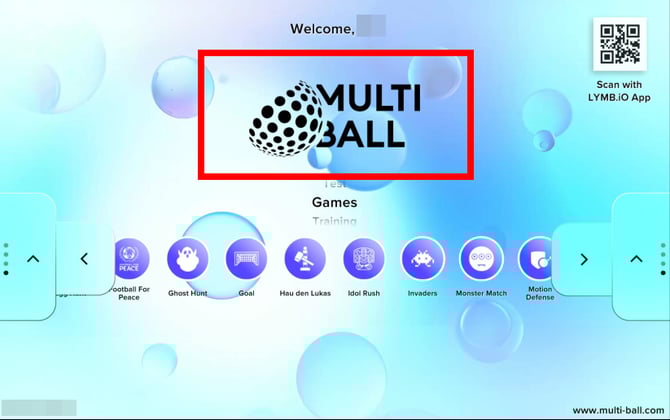
Replace the default logo in the center of the menu by uploading a custom image.
-
Click Upload image and select your new menu image.
- Click Save menu changes to apply your changes to the menu.
Your image should not exceed a pixel size of 2000x2000. If your image includes transparency, make sure the image format supports transparency tool. We recommend using the PNG image format.
Customize the Welcome Message
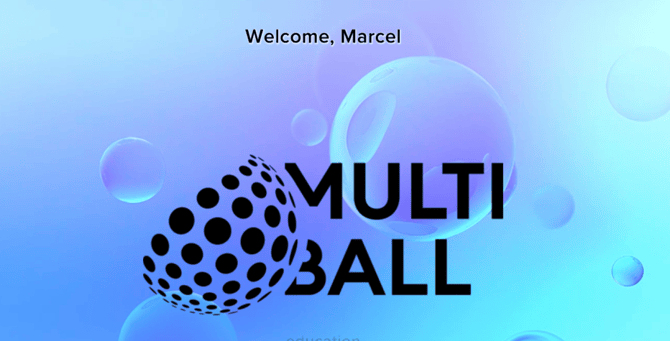
Setup a custom text to display at the top of the menu.
-
Enter your message in the Custom welcome message textbox
- Enter the [PLAYER NAME] placeholder, if you would like to show the name if the currently active player in your welcome message. The snippet is replaced with the name of the player. See How to change player names? for more information on how to set player names.
- Make sure Enable welcome message is activated
- Click Save menu changes to apply your changes to the menu.
If Custom welcome message is empty, the menu will show a default welcome message in the system language. Disable the Enable welcome message switch to remove the welcome message completely.
Disable the App QR Code
By default, your system menu displays a QR code players can use to connect their LYMB.iO app to your system. Disable the Enable app QR code switch to remove this QR code from your system. Click Save menu changes to apply the changes to your menu.
Advanced Customization
For users who want total creative control, our Asset Flip Interface offers a suite of advanced styling tools that go far beyond the basics.