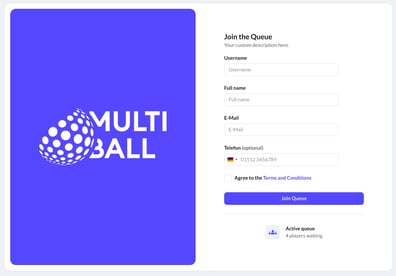
With Player Queue Pro, the plain "enter your name" sign-in becomes a form you design. Ask for an email, a phone number, marketing consent — whatever fits your needs — and match it to your brand. Every submission drops the player straight into your queue and saves their details as a lead.
Player Queue Pro is a paid subscription, activated per system. You can explore the form builder free of charge and activate the subscription once you are ready to use it.
See the Player Queue article for a full list of Player Queue capabilities.
Collect player details using a custom form
Create a form in one of two ways:- Open your Forms overview and click on Create Form. You will be able to link this form to any of your owned systems.
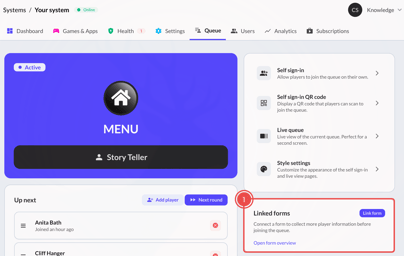
- Clicking the Link form button on the Linked forms panel your system's Queue page. The form will be linked to that system automatically.
You will be redirected to the Form Overview page.
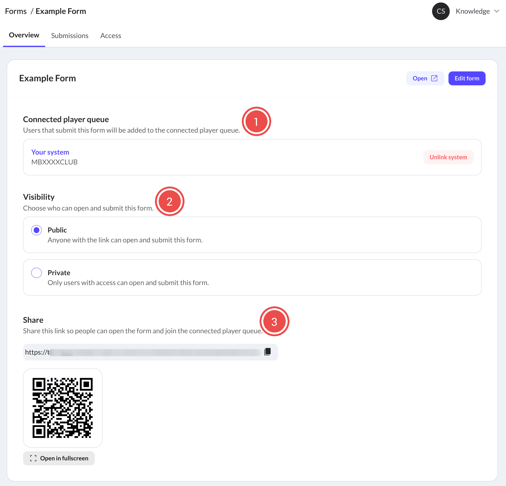
- Connected player queue: Link this form to one of your systems. Players submitting this form will automatically join the Player Queue of this system.
- Visibility: Specify who can see and submit this form.
- Public: Anyone with a link can view and submit this form.
- Private: Only users with access to this form can view and submit this form. Use this if you only want to show the form on your own device. You need to be logged in to the admin on that device.
- Share: Copy the link to your form or display a QR code players can scan to join a public form. Show the QR code on a second screen, or print it.
Configure your forms
Click Edit Form in the top right corner of the Form Overview to open the Form Editor.
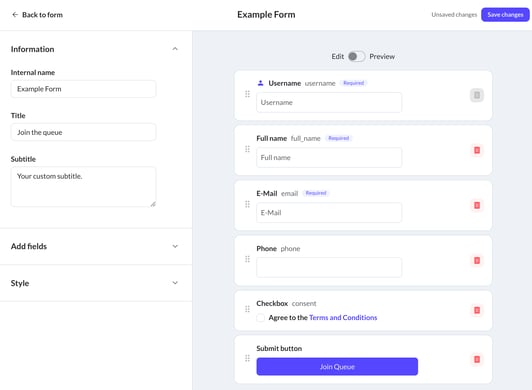
- Information: Specify the form title, subtitle and internal name.
- Add fields: Add a new field to the end of the form. Supported field types are Text, Email, Phone and Checkbox. Edit the Submit button field to specify a custom submit text.
- Style: Customize the appearance of your form. Upload logos, background images and set the form's color palette. Select Preview mode for a live preview of your changes.
Changes aren't live until you save. Save before you close the tab.
Edit form fields
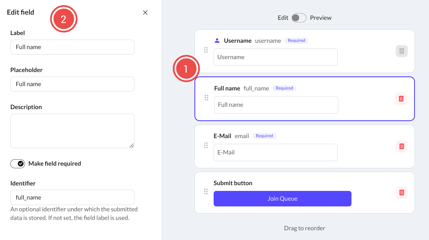
Click on a field in the main view (1) to open field specific settings in the sidebar (2). You can edit the following field properties:
- Label: The text label displayed above the input field.
- Placeholder: The text displayed inside an empty input field.
- Description: Descriptive text displayed below the label. Enter additional context here if required.
- Make field required: If enabled, this field needs to be filled out before the form can be submitted.
- Identifier: The identifier included in the header of the .csv submission export of this form. Enter some text that helps you recognize the field later on. If not specified, the label text will be used instead.
Define links with custom text using the [https://li.nk](your text) markdown notation.
View and export form submissions
-
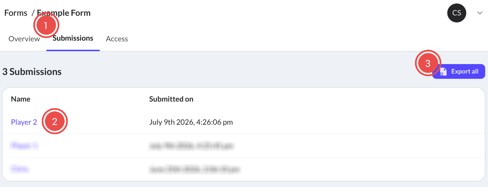
Open the Submissions tab of your form to view all form submissions.
-
Click on the submission Name to view all submitted fields.
- Click Export all to download all submissions in .csv format.
If you need to delete user data from our servers due to data protection reasons, you can delete the form after you exported your data. We remove the data fully from our servers.
If you are using forms to collect leads at events, we recommend creating separate forms per event. You can duplicate your existing forms to simplify this process.
Share your form with other users
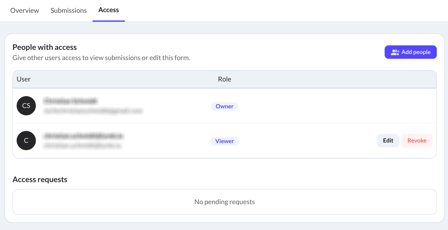
You can share your form with other admin users. This is useful if you want to share submissions with another interested party, or want to create a separate admin account that can view a private form.
- Open the Access tab of your form.
- Click Add people to search for an existing admin account.
- Select the access level the user should have:
- Viewer: Can view submissions, but can not make any changes to the form itself.
- Editor: Can view submissions, edit the form, link systems, edit visibility and add other users.