
interactiveSQUASH systems use controllers to properly process the input coming from sensor bars. Controllers are green circuit boards that can be found behind the covers at the bottom of the system:
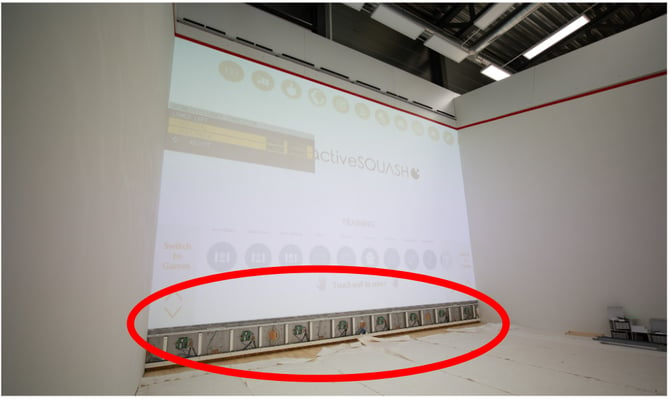
Sometimes controllers might become disconnected from the system. In this case system will detect it and display a warning in the Sensor Inspector screen:
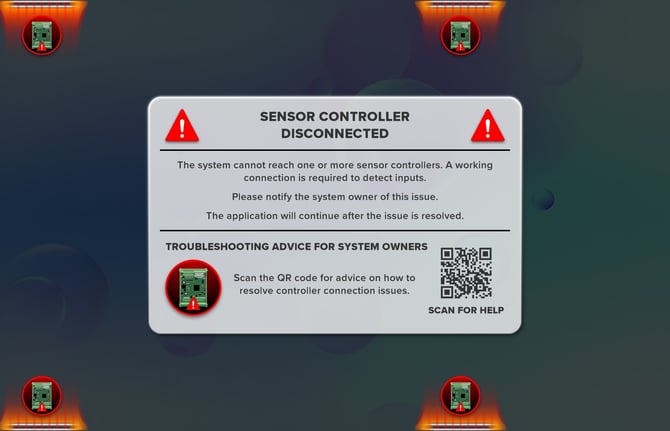
This guide explains how to troubleshoot disconnected controllers.
Step 1: Inactivity check
If the system doesn't receive any input through a controller from sensor bars for too long ( ≈ 2 hours), while still receiving input from all other controllers, it assumes that the inactive controller is disconnected. In this case if you see the Sensor Inspector warning, it might be enough to simply trigger the inactive region by throwing a ball or touching a wall there. If inactive controller reacts to this, system will see it and unblock the screen.
Step 2: Power check
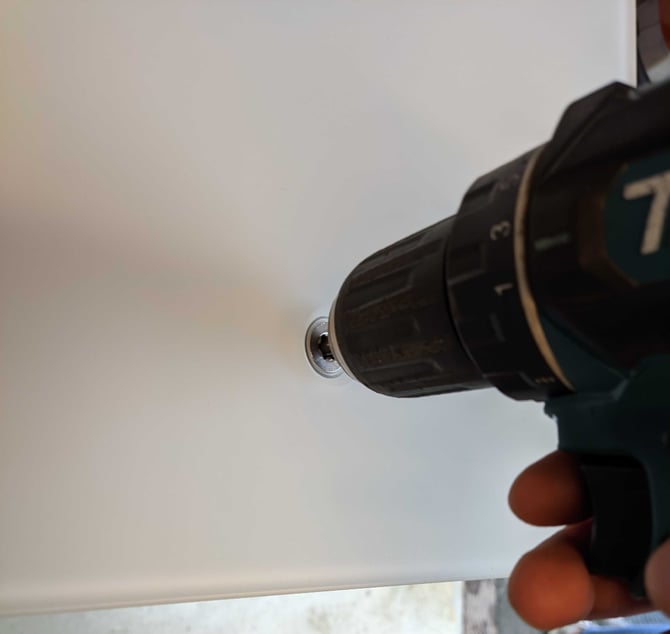
If inactivity check did not resolve the issue, controllers need to be physically inspected. To do this, the covers need to be removed. Here is how:
Remove all the visible screws (8x TX45) on all four panels.
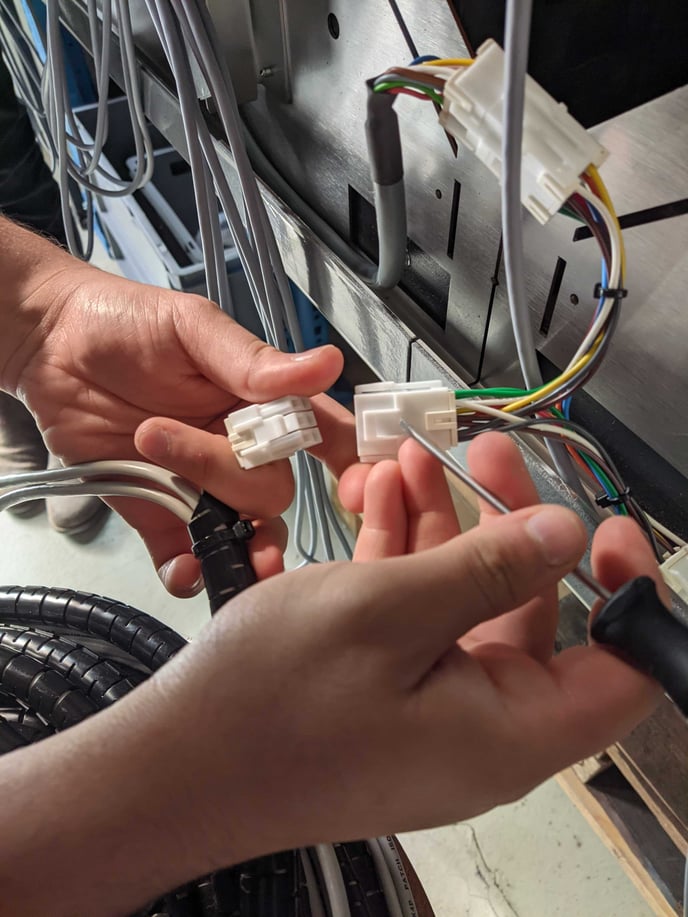
Once covers are removed, you will see all 8 controllers. If they all are turned off (no lit up LEDs on them), please check this White connector in the middle of the system. It should be connected, as it provides power to all controllers:
If only individual controllers are turned off, please make sure this Big Green connector on the top right is properly inserted in those controllers:
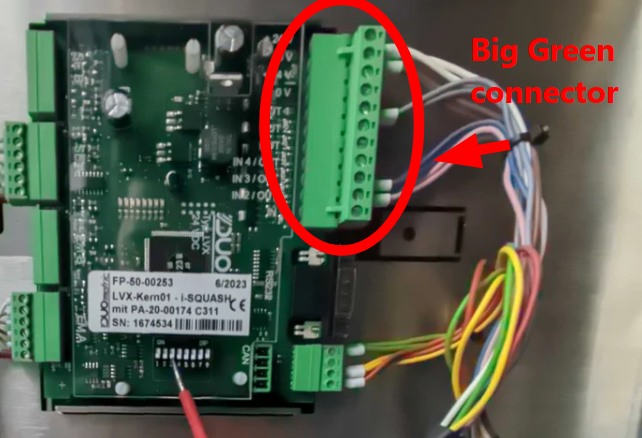
If one controller was not turned on, then please turn it on and trigger the sensors above it, so the system may register input and unblock the screen.
Step 3: Sensor Cables
If power check did not resolve the issue, sensor cables need to be inspected. Sensor cables are connected on the left side of the controllers. Each controller has 2 connections: Red Sender SE A (in the 2nd slot) and Black Empfänger (Receiver) EM A (in the 4th slot):
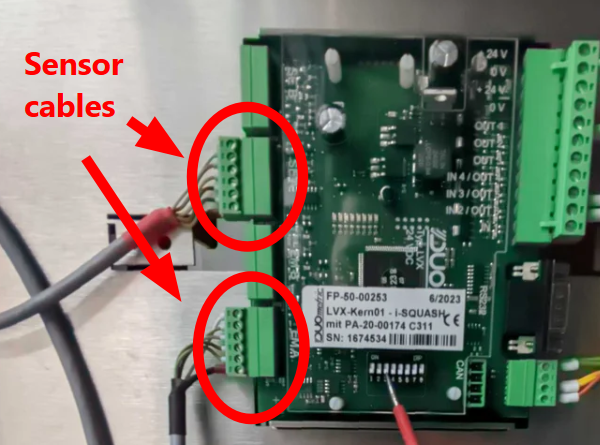
Each controller is connected to the sensor bars above it (one right above it, one all the way at the top).
You can check the respective controller reacting to sensor input by blocking the sensor (touching the wall) and observing the LED OUT 1 on the right side of the controller light up and one of LEDs in the C-F range in the middle turn off.
If controller-sensor configuration was wrong, make sure to reconnect everything correctly and calibrate the sensors: interactiveSQUASH - Sensor Calibration
Then you can trigger the sensors above the controller and see if the screen unblocks.
Step 4: DIP switch 3 check
If sensor cable check did not resolve the issue, last thing to check is DIP switch 3 at the bottom of the controllers. If DIP switch 3 is turned ON (up position), please turn it OFF (down position). Then you can trigger the sensors above the controller and see if the screen unblocks.
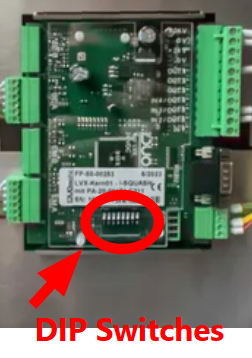
DIP switches 5-7 generally should already be set correctly for each controller, but you may check them with this guide: interactiveSQUASH - Controller Switch Setting for normal operation
Further Support
If none of the steps above helped to fix disconnected controller warning, feel free to reach out to us for support: How to get Support?